Add a stage
- Turn on edit mode with Edit map.
- Choose Add a stage at the end of the layer the stage belongs in.
- Type its name in Name and choose Add stage.
The stage goes at the end of the layer with the next number, and its details open so you can fill them in.
Write up its details
Hold the pointer over the stage and choose Details. As an editor you see the stage's forms.
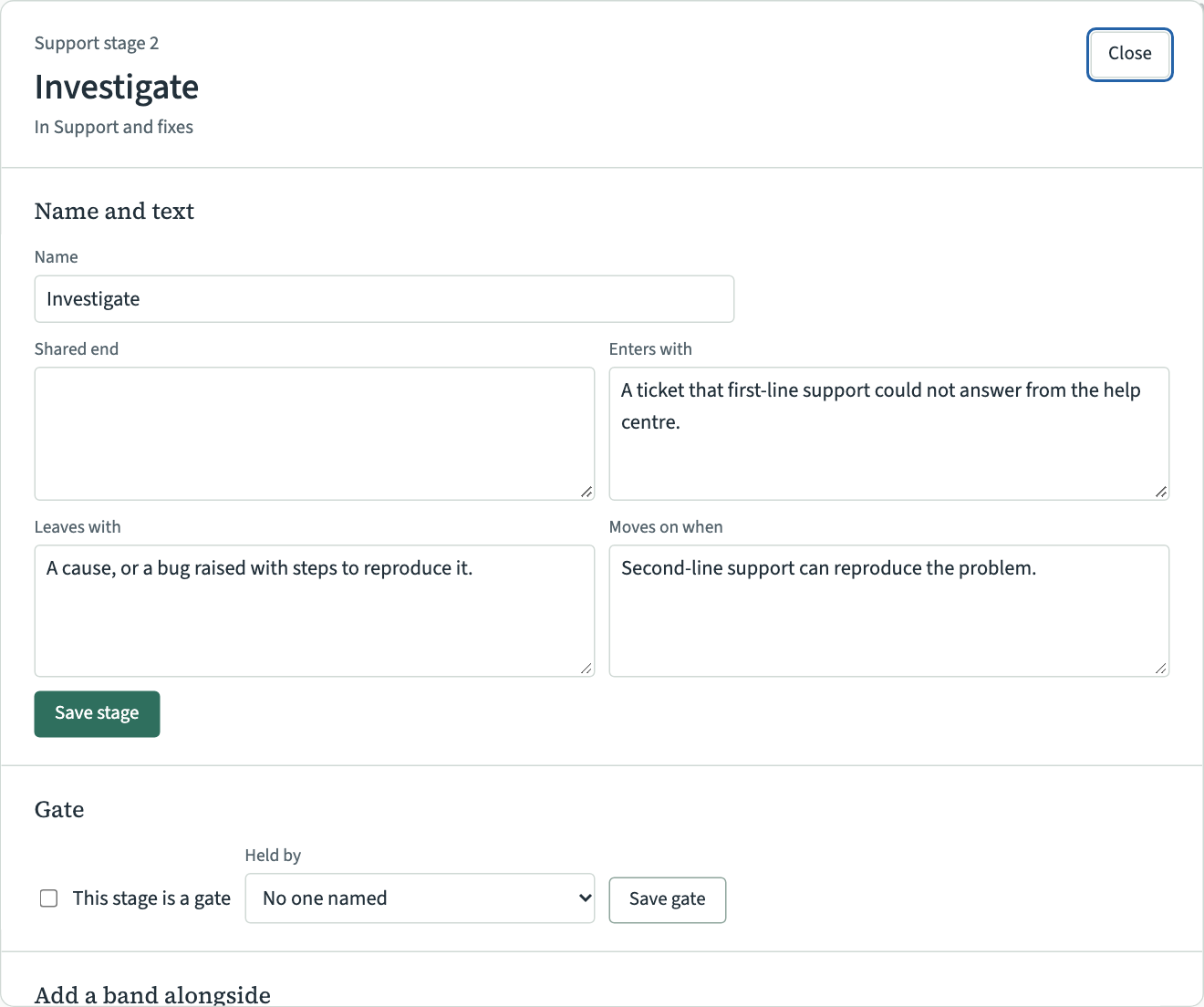
Under Name and text:
- Shared end: what everyone in the stage is working towards. It is shown under the stage's name on its maturity map.
- Enters with: what the work looks like when it arrives.
- Leaves with: what it looks like when it goes on.
- Moves on when: what has to be true before it moves on.
Choose Save stage to save the name and all four. Each section of the dialog has its own button and saves only its own fields.
Make it a gate
A gate is a stage where someone decides whether the work goes on, such as a release decision.
- Under Gate, tick This stage is a gate.
- In Held by, choose the role that decides, or leave No one named. The list holds the roles that the client's practices already use. To add a role, add it to a practice under What it uses, and who decides first.
- Choose Save gate.
The stage shows Gate on the map. Untick the box and save to make it an ordinary stage again.
Remove a stage
Open the stage's details and choose Remove stage, or select the stage in edit mode and press Delete.
A stage that still has practices is not removed. Move its practices to another stage, or delete them, first. A stage where a band starts or ends cannot be removed either. Remove the band first.