Change the order of stages
A stage's place from left to right sets its number. Move it and the numbers follow.
- Turn on edit mode with Edit map and go to level 1 or 2.
- Drag the stage left or right along its layer and let go. The stages are numbered again from left to right.
You can also click a stage to give it focus and use the arrow keys. Left and right move it a quarter of a stage at a time, and up and down move it between rows.
A stage stays in its layer. If VSTA cannot save the move, the stage goes back and a message says why. For example, a move that would put a band's first stage after its last is refused.
Run two stages alongside each other
Some stages happen at the same time, such as connecting bank feeds and importing data from old software. Put one under the other:
- At level 1 or 2 in edit mode, drag one stage onto the other and let go.
- The stage drops into the row below. Stages that start at the same point share a number with a letter, such as 2a and 2b.
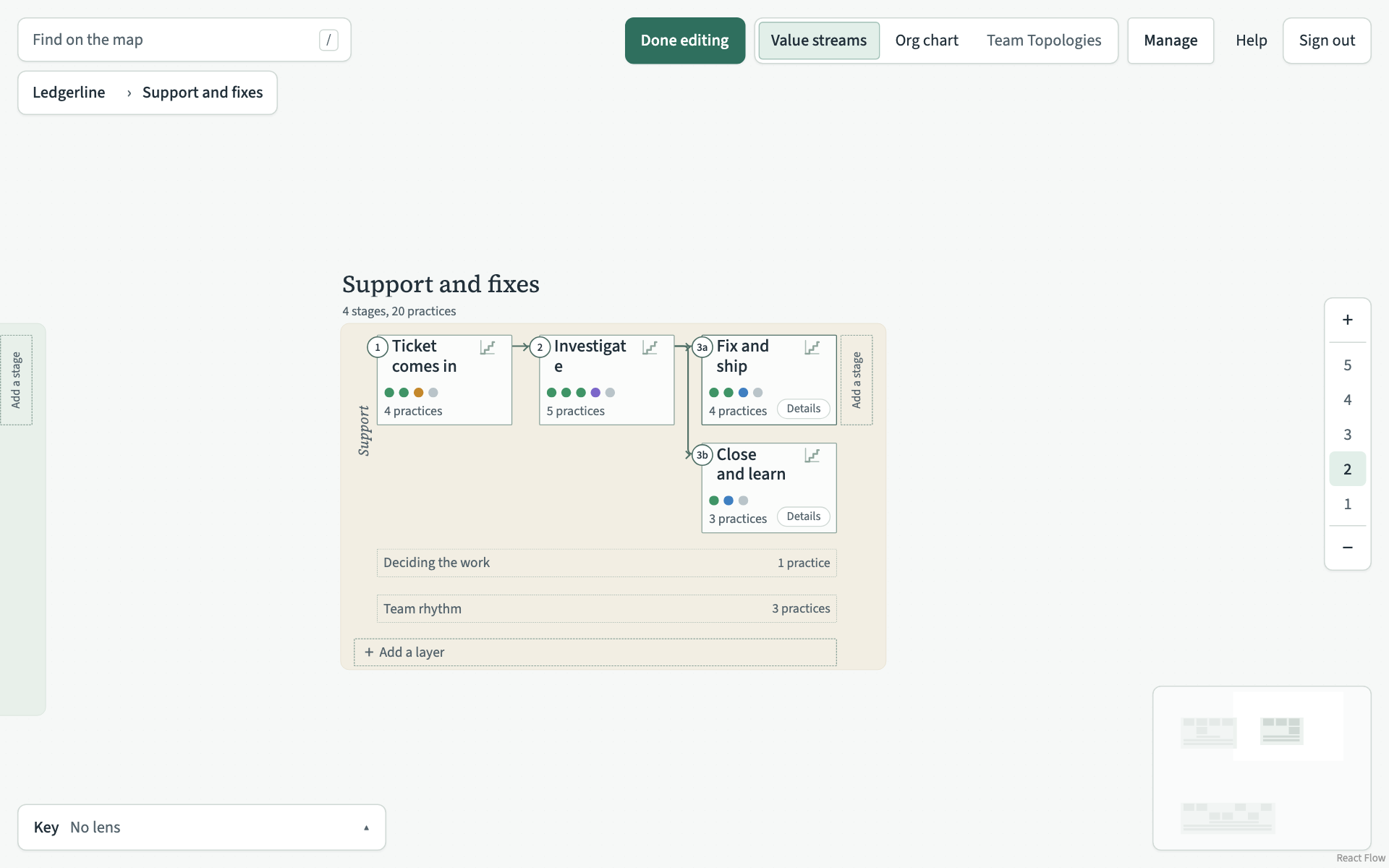
To put a stage back in the first row, drag it to a free place in that row, at least a whole stage's width clear of the stages either side. A drop closer than that puts it in the row below again.
Resize a stage
A stage is sized to fit its practices. Make it bigger to leave room when you arrange its cards.
- Turn on edit mode. You can resize a stage at any level.
- Hold the pointer over the stage. Slim handles appear on its right edge, its bottom edge and its bottom right corner.
- Drag a handle. The stages after it move along to make room. If that makes the value stream grow into the value stream beside it or below it, that value stream moves out of the way, and so does any value stream it then meets.
With a handle focused, the arrow keys resize the stage in small steps, and holding Shift makes the steps bigger. A stage never gets smaller than its cards. To give a stage back its automatic size, focus one of its handles and press Delete.