Add a practice
- Turn on edit mode with Edit map and go to level 3, 4 or 5.
- Choose Add a practice in the top right corner of the stage, band or every-stage row the practice belongs in.
- Type its name in Name and choose Add practice.
The practice's record opens, with the cursor in Outline, ready for the rest.
Write up its record
Double-click a practice at level 4 or 5 to open its record. As an editor you see its forms, in sections. Each section has its own button and saves only its own fields, so save one section before you move to the next. If you try to close the dialog with something unsaved, VSTA asks first.
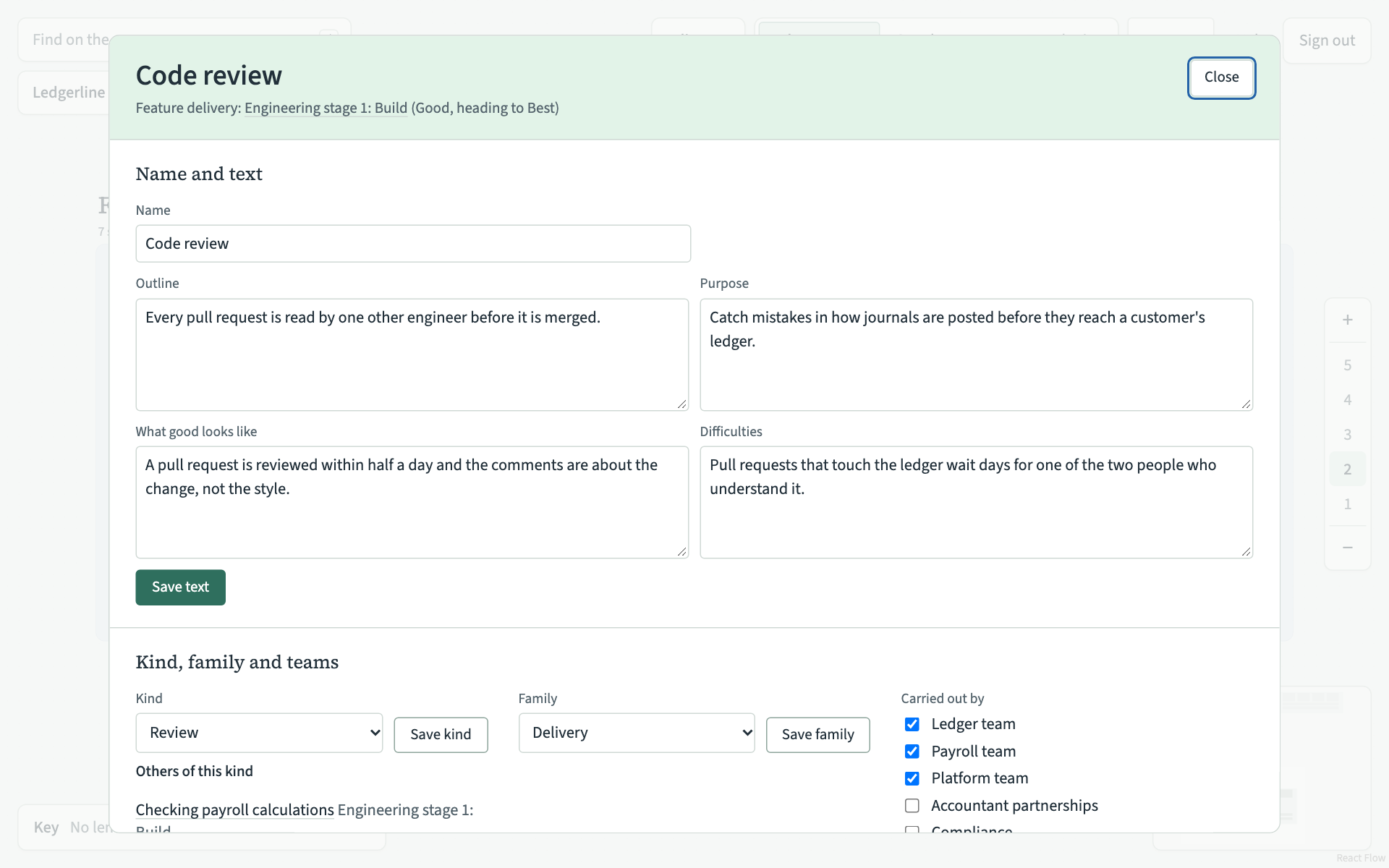
Name and text. The Name, and four pieces of text: Outline (what people do), Purpose (why they do it), What good looks like and Difficulties. Choose Save text. The outline and purpose show on the card at level 5.
Kind, family and teams.
- Kind says what sort of practice it is, so it can be compared with others of the same kind, such as Review or Stand-up. Choose one and Save kind. The list holds the kinds the client already has. Kinds are added by a facilitator through Claude; editors cannot add one in VSTA yet.
- Family is one of Delivery, Team, Management or Governance. It sets the symbol on the card. Choose one and Save family.
- Carried out by lists every team and function. Tick the ones that carry the practice out and choose Save teams.
What it uses, and who decides. There is a field for each kind of shared item: Add a tool, Add knowledge, Add information, Add a skill and Add a role. Type a name and choose Add. As you type, VSTA suggests items the client already has. A name it does not know makes a new item. Add who decides names a role that makes the decisions in this practice. Choose Remove beside an item to take it off this practice. The item itself stays, for other practices.
Relations. Draw, change or remove a relation explains this section.
Where it sits. Move, copy or delete a practice explains this section.
Rename it on the map
In edit mode at level 4 or 5, double-click the practice's name on its card, type the new name and press Enter.