Select a practice
From level 3, click a practice's card. Its relations to other practices are drawn in their colours, with a label for each type, and the practices it has nothing to do with fade. From level 4, holding the pointer over a card does the same until you move away.
To let the selection go, press Escape or click an empty part of the map.
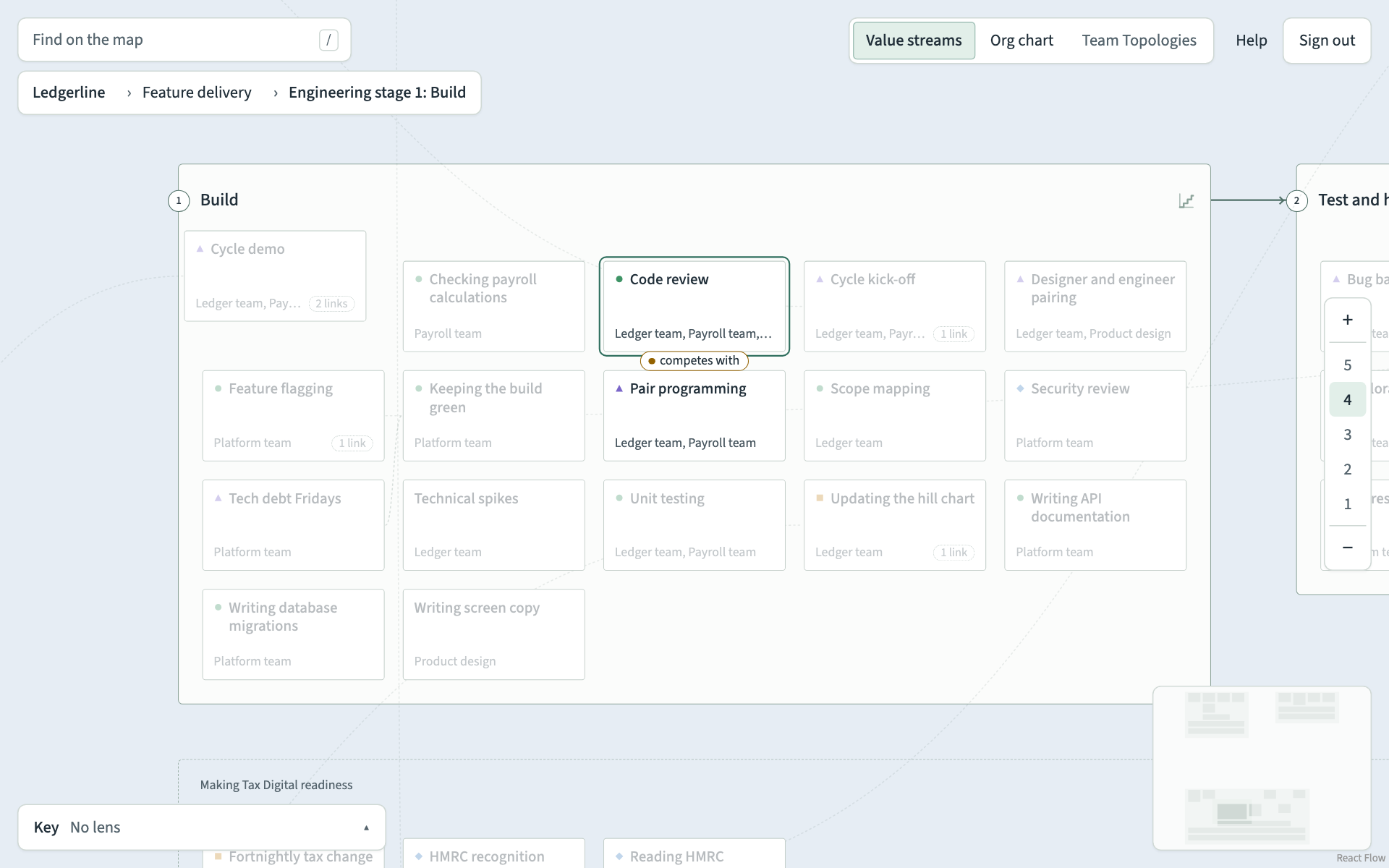
Open its record
At level 4 or 5, double-click the card, or select it and press Enter. The practice opens in a dialog over the map. At level 3, a double-click glides to the card first.
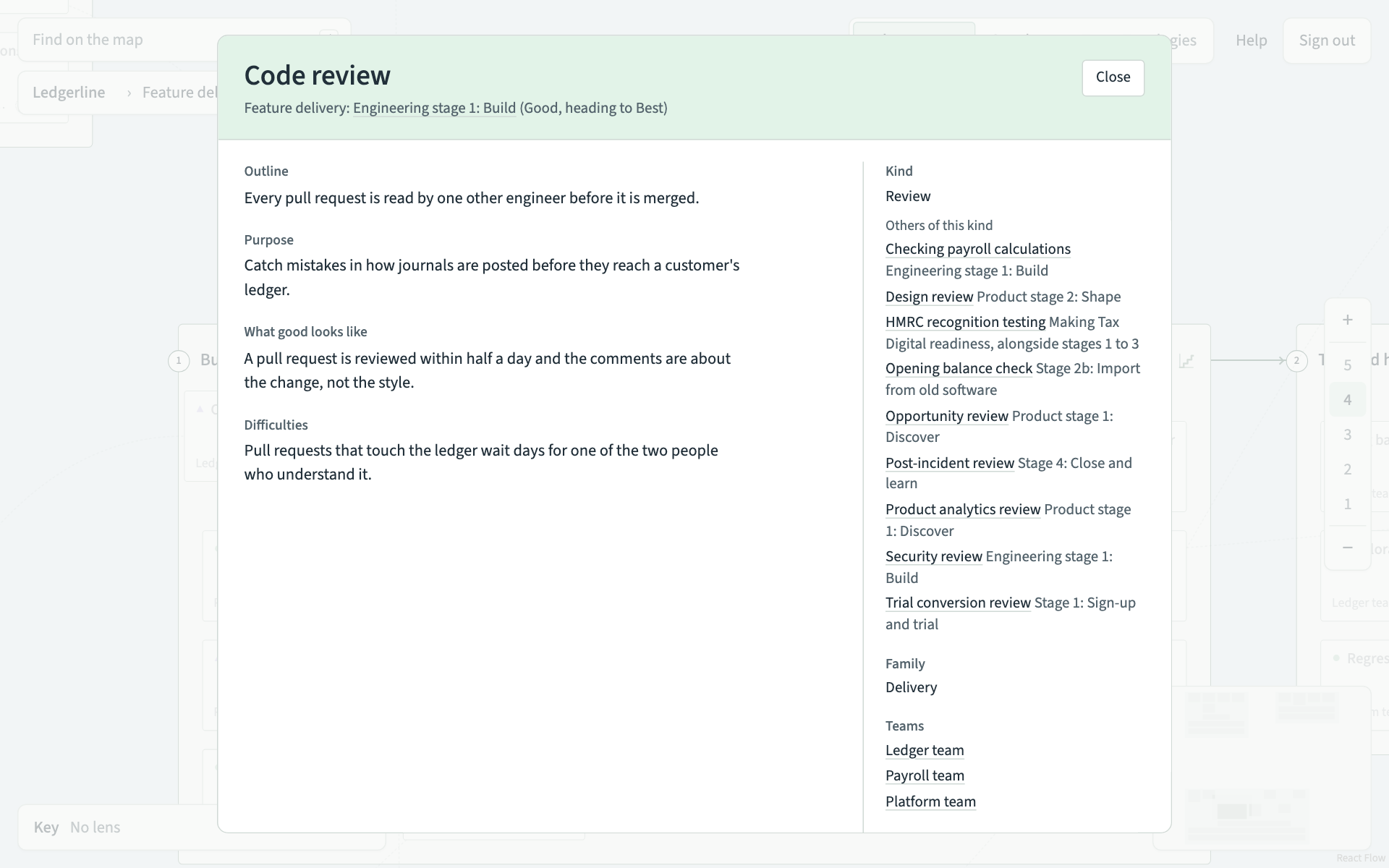
The dialog shows:
- under the name, each place the practice sits, with its maturity there, such as "Good, heading to Best". If it is not on a maturity map yet, it says so;
- Outline, what people do, and Purpose, why they do it;
- What good looks like and Difficulties;
- Kind, the kind of practice it is, with Others of this kind listed as links;
- Family, one of Delivery, Team, Management or Governance;
- Teams, the teams that carry it out;
- Who decides, the roles that make the decisions in it;
- What it uses: tools, knowledge, information, skills and roles;
- Relations, each one written as a sentence, such as "Code review competes with Pair programming", with where the other practice sits;
- Other copies, if the practice was copied into another stage.
Anything nobody has written yet says "Not written yet".
Follow its links
- A stage or another practice glides the map there and closes the dialog.
- A team opens the org chart with that team chosen.
- A tool, a role or another item opens a page that lists every practice that uses it, with where each one sits and whether it uses the item or decides. Use your browser's back button to return to the map.
Choose Close or press Escape to close the dialog. The map is where you left it.