- Pan. Drag any empty part of the map.
- Zoom. Scroll with the mouse wheel, or pinch on a trackpad. The zoom ladder on the right does the same a level at a time.
- Go to a value stream or a stage. Double-click it. The map glides until it fills the screen.
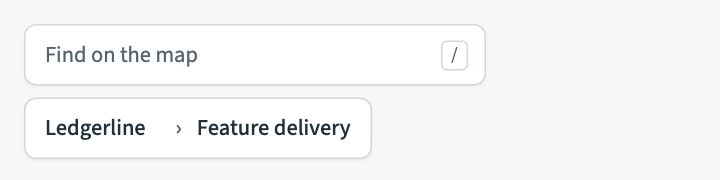
- Go back out. The place bar under the search box shows where the middle of the screen is, such as "Ledgerline › Feature delivery › Engineering stage 1: Build". Choose any part of it to glide back to that place. Choose the client's name to see the whole organisation.
- Use the overview. The small picture at the bottom right shows the whole map, with the part on screen highlighted. Drag inside it to move the map, or scroll over it to zoom.
Zooming never moves anything on the map or changes its size. When a value stream's practices first load, a stage may grow to hold cards placed by hand, and the stages after it move along. The point under the pointer stays where it is while this happens.
Share a link to one place
When you open a practice, the details of a stage or a maturity map, or turn on a lens, the address in your browser changes to say so. Copy it and send it to someone in the same client, and the link opens the map with the same thing showing.
These parts of an address open the map in a particular place:
?vs=and a value stream's id opens the map on that value stream.?stage=and a stage's id opens it on that stage.?practice=and a practice's id opens the practice.?maturity=and a stage's id opens that stage's maturity map.?lens=turns a lens on, such as?lens=maturity.
Anyone who opens the link needs to be a member of the client. If the id is not in the map, it opens on the whole organisation.