You need Claude Code installed on your computer, and you need to be a facilitator of the client.
-
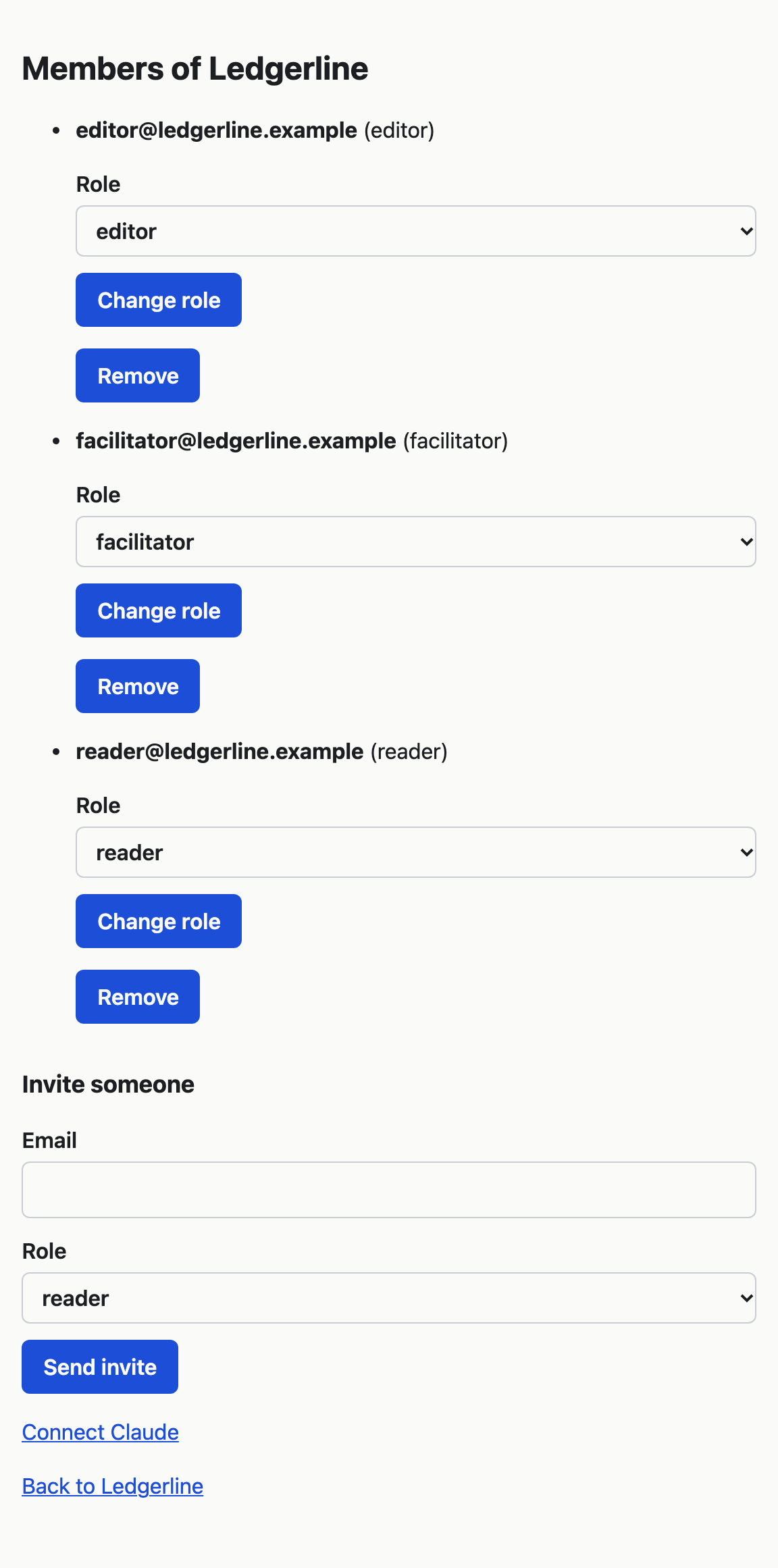
Open the client in VSTA, choose Manage at the top right, then Members.
-
Choose Connect Claude. You can also go straight to
/<client address>/claude, such as/ledgerline/claude. -
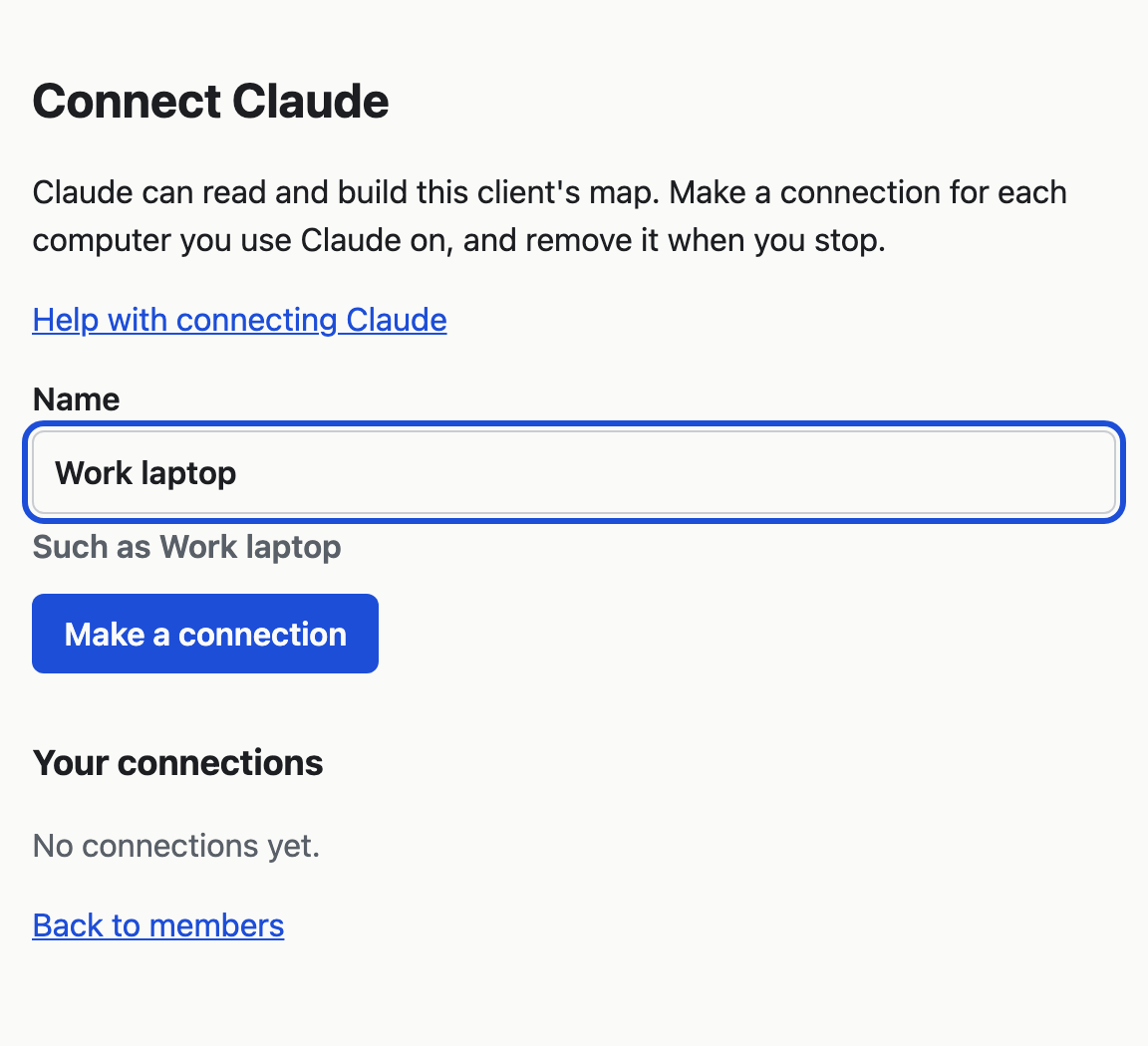
In Name, say which computer this connection is for, such as Work laptop. The name is only for you, so that you can tell your connections apart later. It can be up to 60 characters.
-
Choose Make a connection. The page shows a command that starts
claude mcp add.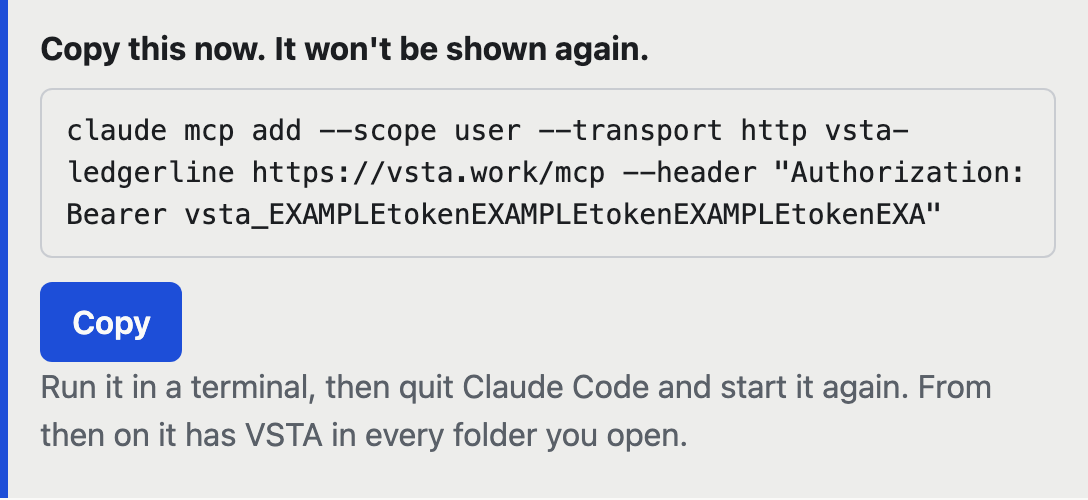
-
Choose Copy, or select the whole command by hand. VSTA shows the command once. If you leave the page before you run it, remove the connection and make a new one.
-
Open a terminal, paste the command and run it. Any folder will do. Claude Code answers
Added HTTP MCP serverwith the connection's name, such asvsta-ledgerline, and adds the connection for every folder you open. -
Start Claude Code. If it was already running, quit it and start it again, because it reads its connections when it starts.
-
In Claude Code, type
/mcp. The list shows the connection's name as connected. You can also runclaude mcp listin a terminal, which shows✔ Connectedbeside it.
The command holds a token, which works like a password for this client's map. Do not paste it into a chat, an email, a commit or a shared file.
Connecting again
The command names the connection vsta-<client address>, such as vsta-ledgerline for the client at https://vsta.work/ledgerline. Claude Code keeps one connection by that name.
If you connect again to the same client, such as after losing the command, the new command answers MCP server vsta-<client address> already exists in user config and changes nothing. Run claude mcp remove with the old connection's name and -s user, such as claude mcp remove vsta-ledgerline -s user, then run the new command again.